


Here is another Photo Effect, this time I’ve chosen Fantasy Look or Dreamy look by using Adobe Photoshop, hopefully you will like it. It is not a lengthy tutorial, so it will not be boring I guess.
final look of our work Fantasy Look using Adobe Photoshop Tutorial:

1. Lets start with a new file and put your desire picture in it, so I’m using a Model Picture, having light colors around her:

2. Press Ctrl+J three times to duplicate this picture (for your convenience I’ve given the names from 01 to 03):
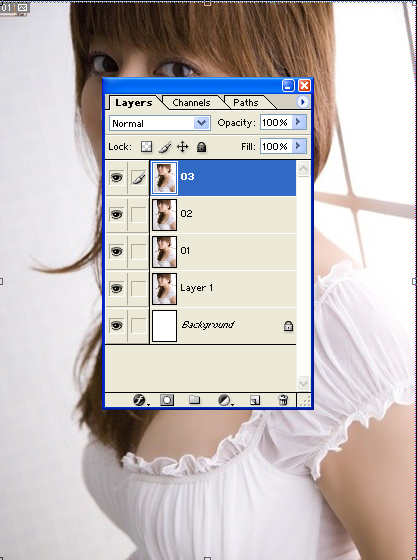
3. Select 01 layer, which is first duplicated Layer, change the blending mode from Normal to Soft Light through layer panel and then reduce the opacity to 15%:

4. I’ve moved third duplicated layer below second duplicated layer, select the blending mode from Normal to Soft Light and no need to change the opacity of this picture:

5. Keep selecting this layer, goto Filter >> Blur >> Gaussian Blur and chose radius according to picture size (larger the size greater the number), so I’ve chosen 4.5:

6. Select the last layer and change its blending mode from Normal to Soft Light and reduce the opacity to 55%:

7. Go to Filter >> Blur >> Gaussian Blur and this time give the 8.5 px:

See the result:

8. Create new layer on top of all layers and fill it with #CEC08F color:

9. Change the blending mode from Normal to Overlay and reduce the opacity to 15%:

10. Create another new layer and fill it with #C8C0B5 color:

11. This time change the blending mode from Normal to Soft Light and no need to reduce the opacity:

Here is the final look of our work Fantasy Look using Adobe Photoshop Tutorial, hopefully those designers who are new in Adobe Photoshop, this tutorial will have something for them to learn:



I must thank you for sharing this useful topic. Really a worth reading post ! it explains it all so easliy ! thank you for sharing this article !!
Just out of curiosity, who is this model? Can I get a name?
nice work i leran good effect 4r the help this tutorial
Wow…wonderful effect form you…
———————————
http://www.deepetch.com
Clipping path, Masking, Retouching, Color correction, Vector services
good works
very good
very beatiful this girl,thx for tutorial.
so much beautiful technique for photo retouch.